

Phone Control
See every phone in your fleet live and control it from your browser, from anywhere.

Phone Control puts every phone you own in one place. You see which phones are online and what they're doing. You can open any phone's screen live in your browser and tap, swipe and type on it as if you were holding it.
It's also how a team works the phones. Your VAs log accounts in, reply to messages or fix a stuck screen from their own browser, wherever they are, and you choose which phones each person can see. Nobody needs to be near your phones.
It's the base of most AutoGrowth setups. Automations run on top of it, and it's what lets you check on a phone without walking over to it.
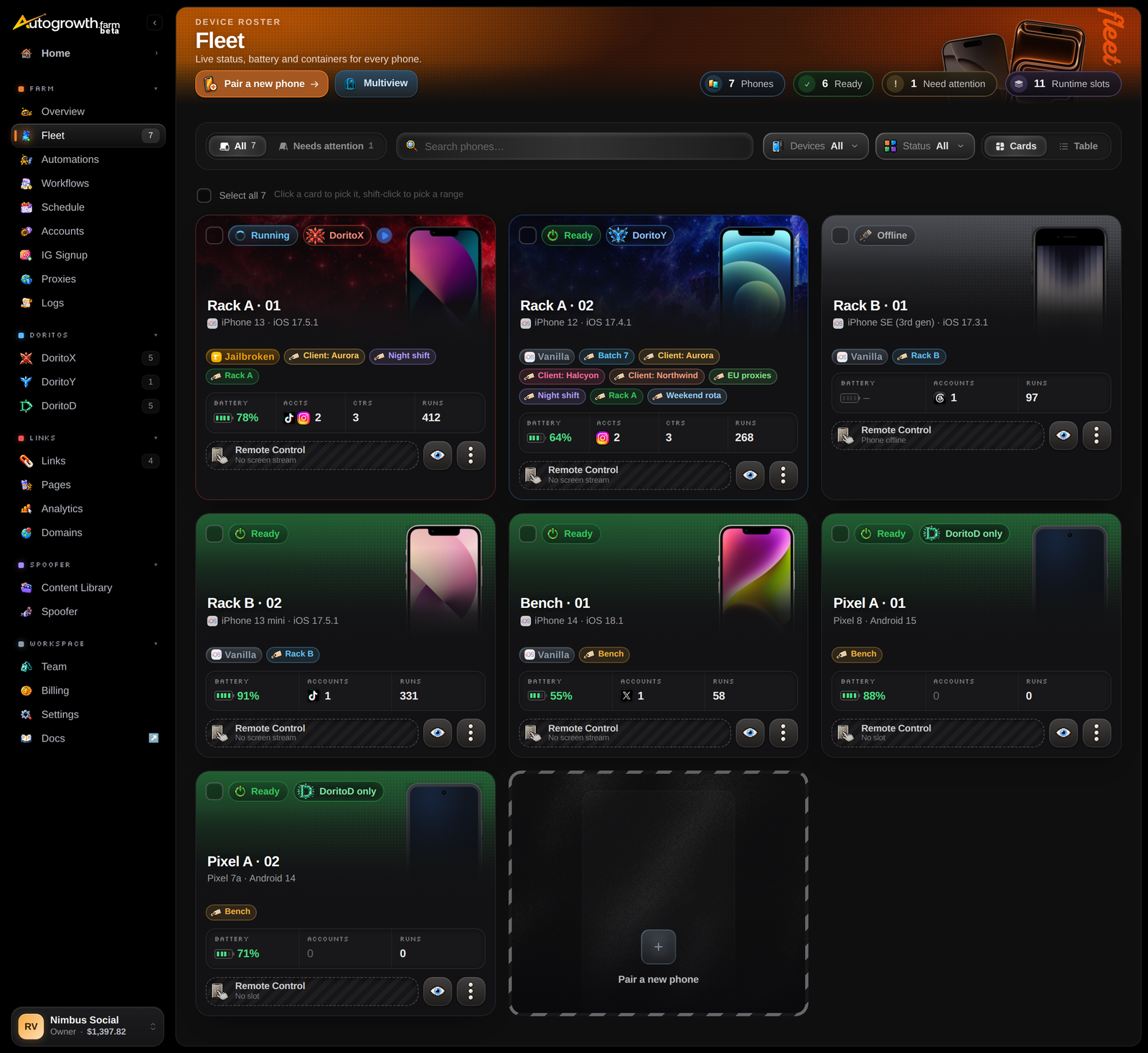
What you get
- Your whole fleet on one page. Every phone with its status (ready, running, offline or needing attention), battery, accounts and recent runs. Give phones names of your own, tag them, and pick many at once to start, stop or build their Agents, or tag them in one go.
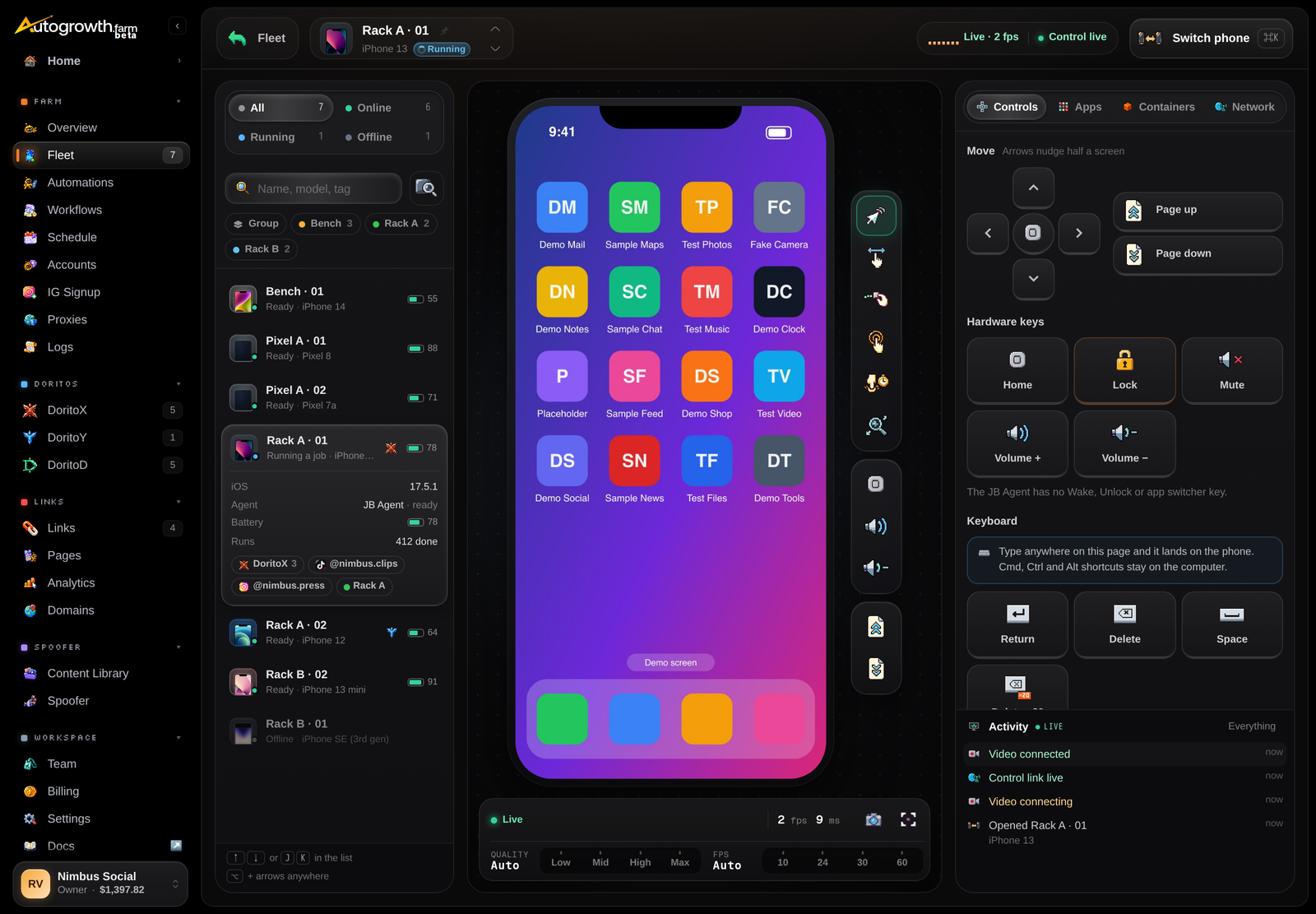
- Many screens at once. Multiview shows up to 12 live screens side by side, and can send the same tap to several phones.
- A live screen for every phone. Open any phone in a browser tab and drive it: tap, swipe, type, go home. Use it to log an account in by hand, clear a popup, or check what a run left on screen.
- Content storage. Every Phone Control slot adds 20 GB to your organization's content library, where the photos and videos you post live.
- The ground for automation. A phone needs Phone Control before it can run automations.
Which phones work
| Phone | Works with Phone Control | Notes |
|---|---|---|
| iPhone (regular) | Yes | iOS 15 or newer. The most common choice |
| Jailbroken iPhone | Yes | Any jailbreak with Sileo. Pairs well with DoritoX |
| Android phone | Yes | Any phone that runs 64-bit Android, on GrapheneOS or the maker's own Android (Samsung, Pixel, Xiaomi, …), and Android emulators that run ARM apps (MuMu, BlueStacks, LDPlayer, …). Can be controlled. Automations on Android are coming soon |
An Android phone can also run DoritoD clones, with or without Phone Control.
What you need
- A computer that stays on, a Mac or a Windows PC, running the free Companion app. The phones plug into it by USB cable.
- Good cables, and powered USB hubs once you're past a few phones.
- One Phone Control slot per phone. A slot is the monthly subscription for one phone. You can move a slot from one phone to another.
How it's billed
Phone Control is billed per phone, per month. At standard prices it's $19.99 a phone, dropping to $14.99 past 25 phones and $9.99 past 100. You need at least 5 slots, and they open the Farm and Spoofer sections of the dashboard. Everything is paid from a prepaid credit balance that you top up by card or with crypto, so no card is charged automatically. See Pricing.
Good to know
- The computer is part of the setup. While the computer is asleep or the Companion is closed, its phones are offline. See How it works.
- Several people can open the same phone at once. There's no lock, so agree on who is driving before two of you tap at the same time.
Set it up

Sign in to read the full docs
The setup guides, playbooks, reference and API docs are only open to paying customers.